
Skip to main content Home About the Design SystemRoadmap OverviewDesignersDevelopers OverviewColorGridIconographyInteractionsSpacingTypography Overview Global colorBox shadowTypographyBorderOpacitySpaceLengthIconBreakpointsMedia queries All elements Accordion Alert Announcement Audio player Avatar Back to top Badge Blockquote Breadcrumb Button group Button Card Chip Code block Call to action Dialog Disclosure Footer Health index Icon Jump links Menu dropdown Navigation link Navigation (primary) Navigation (secondary) Navigation (vertical) Pagination PopoverPlanned Progress stepper Readtime Scheme toggle Select Site status Skeleton Skip link Spinner Statistic Subnavigation Surface Switch Table Tabs Tag Tile Timestamp Tooltip Video embed OverviewColor PalettesCustomizingDevelopers All PatternsAccordionAlertCall to ActionCardFilterFormLink with iconLogo wallSearch barSticky bannerSticky cardTabsTagTile All Personalization PatternsAnnouncement FundamentalsAccessibility toolsAssistive technologiesCI/CDContentContributorsDesignDevelopmentManual testingResourcesScreen readers Design/code status Release notes Get support

Navigation (primary)

OverviewStyleGuidelinesCodeAccessibilityDemos
ImplementationKeyboard interactionsFocus orderTouch targetsARIA Authoring Practices Guide (APG)Web Content Accessibility GuidelinesImplementationKeyboard interactionsFocus orderTouch targetsARIA Authoring Practices Guide (APG)Web Content Accessibility Guidelines

Implementation

  • If a primary navigation does not use the native <details>/<summary> elements, ensure aria-expanded is applied to the menu trigger element and respects its state
  • If an item in the menu is an icon, ensure the icon has an accessible name

Keyboard interactions

All elements of the primary navigation can be navigated with a keyboard.
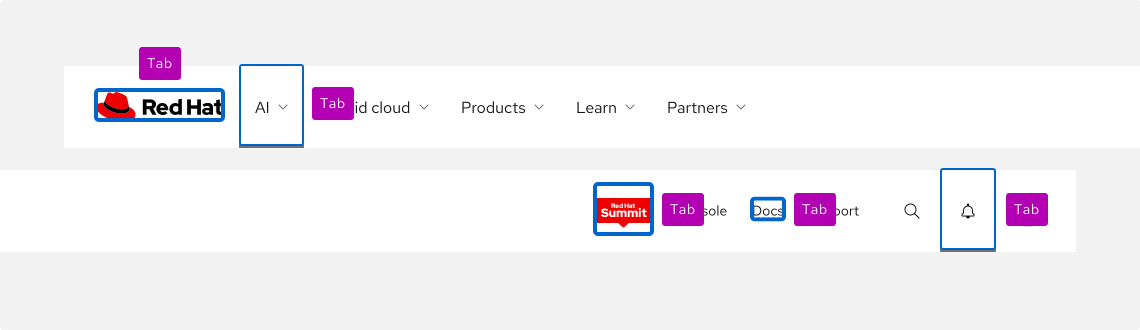
A primary nav with each individual focusable element in each group (logo, menus, links) highlighted by a blue focus ring and the words 'tab' next to each.

Primary and utility menus can also be expanded or collapsed using the keyboard.
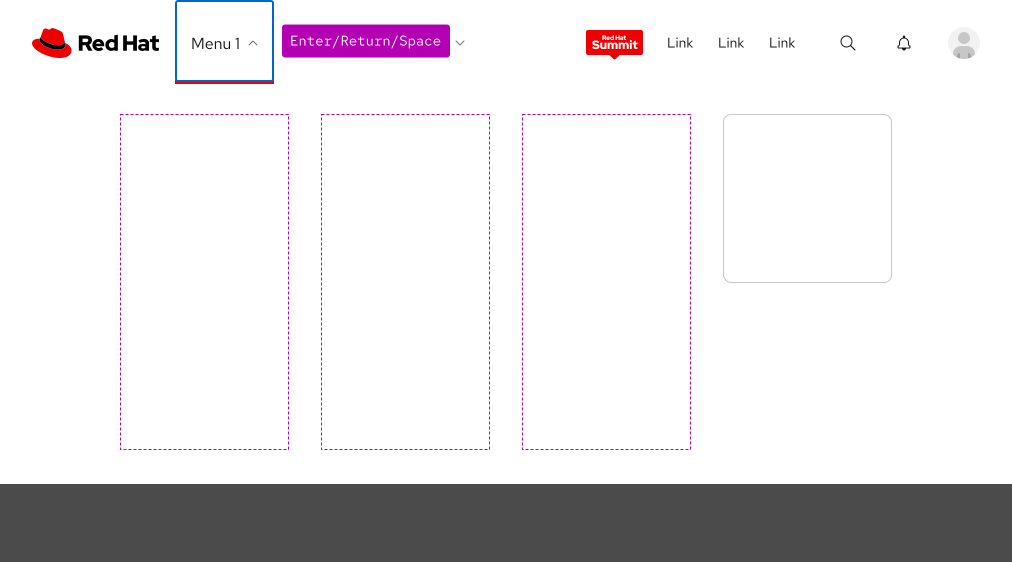
A primary nav with a dropdown trigger focused with the words 'Enter / Return / Space' next to it.
Primary navigation keyboard navigation behavior
Key Result
Tab
  • Moves focus to the next interactive element
  • Moves focus inside of a menu if expanded
  • Collapses an expanded menu when focus leaves the expanded menu
Shift + Tab
  • Moves focus to the previous interactive element
  • Moves focus outside of a menu
  • Collapses an expanded menu when focus leaves the expanded menu
Enter/Return/Space
  • Expands or collapses primary or utility menus (when primary or utility menus have focus)
Enter/Return
  • Directs users to another page (when a link has focus)
Escape
  • Moves focus to the next interactive element
  • Moves focus inside of a menu
  • Collapses an expanded menu when focus leaves the expanded menu

Focus order

A logical focus order helps keyboard users operate our websites. Elements need to receive focus in an order that preserves meaning, therefore the focus order should make sense and not jump around randomly.
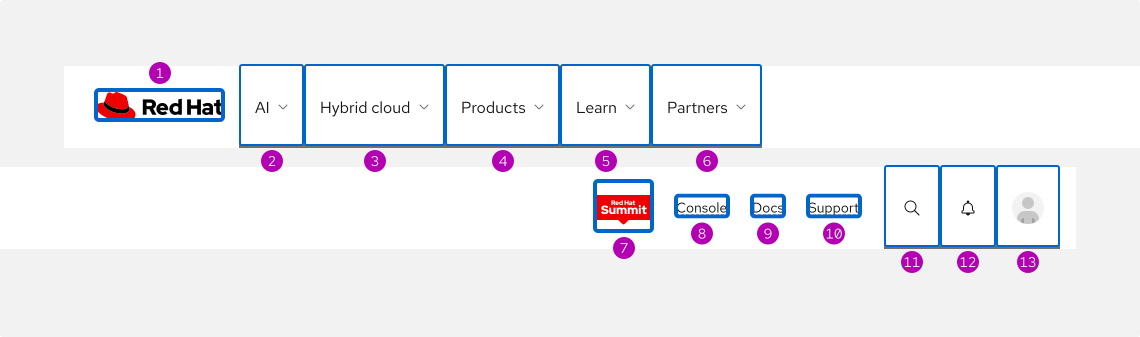
A nav with numbers 1-12 showing focus moving from the top left to the bottom right in the correct sequence

When a menu is expanded, focus moves from the menu trigger to the first interactive element. When focus is moved away from the last interactive element in a menu, it will collapse. (6)
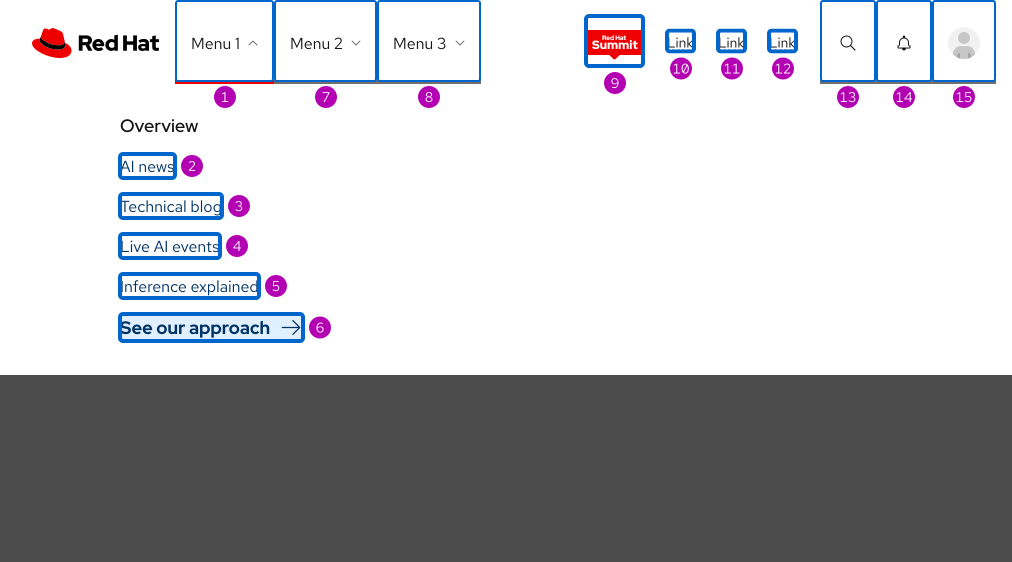
A nav with the first menu expanded, showing the focus order going into the menu then back out in the correct sequence.

Touch targets

All menu triggers and cross-domain links exceed the WCAG Level AA success criteria for target size, which calls for touch targets to be at least 24 by 24px.
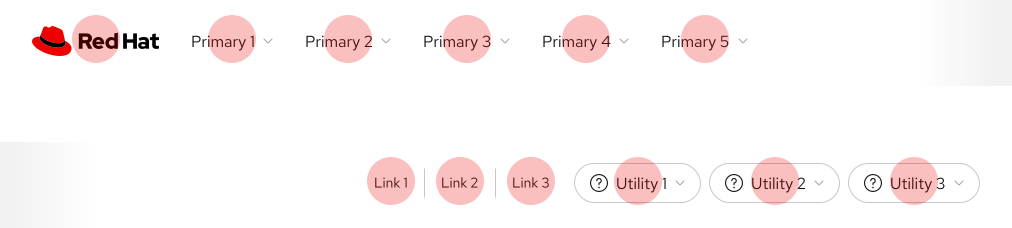
Little red 24px semi-transparent circles overtop of each interactive element in a primary navigation showing that each interactive element in the nav is larger than 24px by 24px.

ARIA Authoring Practices Guide (APG)

Learn to use the accessibility semantics defined by the Accessible Rich Internet Application (ARIA) specification to create accessible web experiences.

View APG resources

Web Content Accessibility Guidelines

Automated testing

Some of our elements may receive errors or warnings that are false positives from automated testing tools. If you are experiencing some of these issues, please read our update on false positives in automated tools.

Understanding documents provide detailed explanations for Web Content Accessibility Guidelines (WCAG) guidelines and success criteria.

© 2026 Red Hat Deploys by Netlify